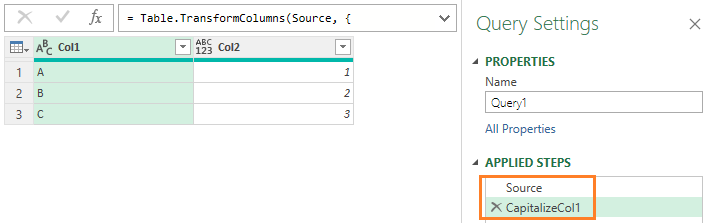
M Language Tutorial
M Code#
While Power Query’s GUI is user-friendly, the underlying M code is what powers it. To unlock Power Query’s full potential, you need to understand M.
Environment Setup#
Why Excel?#
We’ll use Excel as our learning environment for two reasons:
- Accessibility - most people already have Excel installed
- Easy data preparation - create sample datasets directly in Excel
Preparing Sample Data#
Create a table in Excel to use as your data source:
- Enter your sample data
- Select the data range and insert a table (Insert → Table)
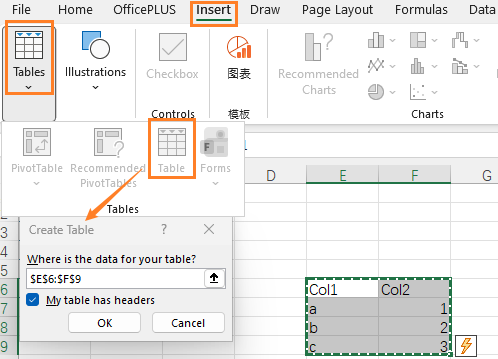
- Rename the table for easy reference later

Power Query Editor#
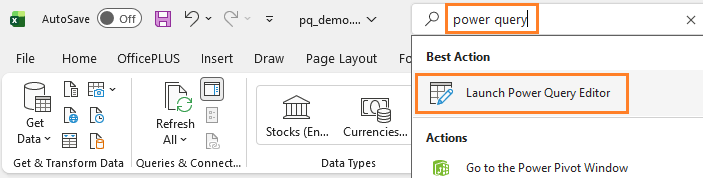
While you can write M code in VS Code, Power Query Editor is more intuitive for beginners to learn M code. To open it, type Power Query Editor in Excel’s search box and select ‘Launch Power Query Editor’.
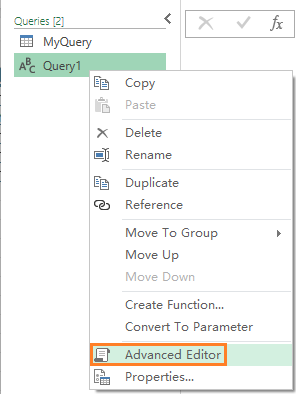
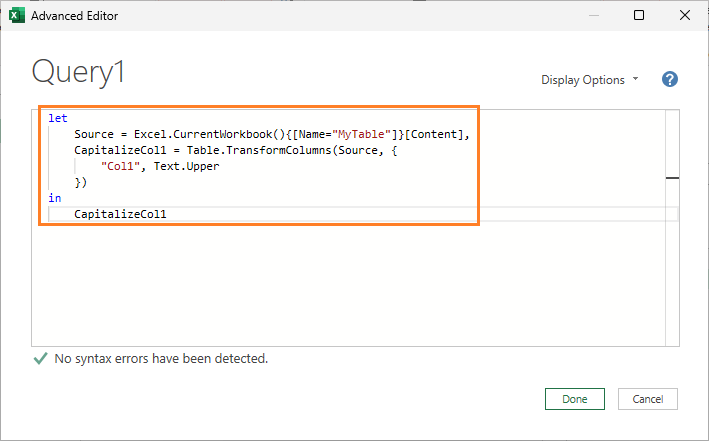
We’ll write M code directly in the Advanced Editor rather than relying solely on the graphical interface.
Steps:
- Create a new blank query
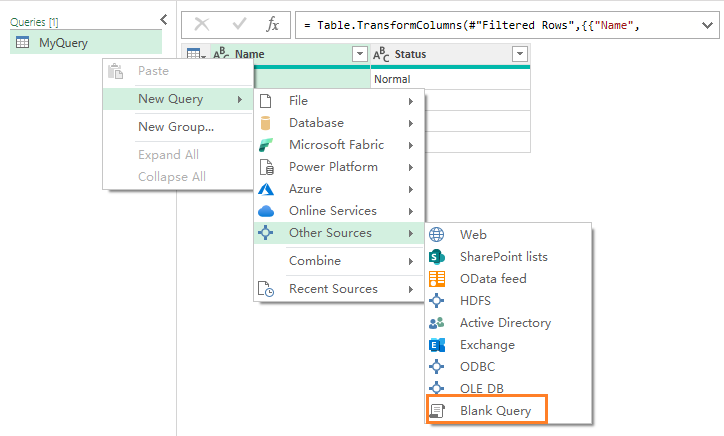
- Open the Advanced Editor for
Query1
- Write your M code
- View transformation steps in the Applied Steps panel