M Code#
While Power Query’s GUI is user-friendly, the underlying M code is what powers it. To unlock Power Query’s full potential, you need to understand M.
Environment Setup#
Why Excel?#
We’ll use Excel as our learning environment for two reasons:
- Accessibility - most people already have Excel installed
- Easy data preparation - create sample datasets directly in Excel
Preparing Sample Data#
Create a table in Excel to use as your data source:
- Enter your sample data
- Select the data range and insert a table (Insert → Table)
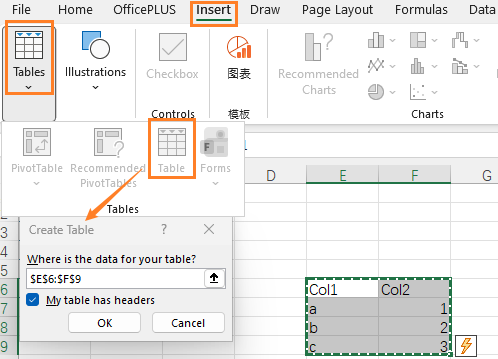
- Rename the table for easy reference later

Power Query Editor#
While you can write M code in VS Code, Power Query Editor is more intuitive for beginners to learn M code. To open it, type Power Query Editor in Excel’s search box and select ‘Launch Power Query Editor’.
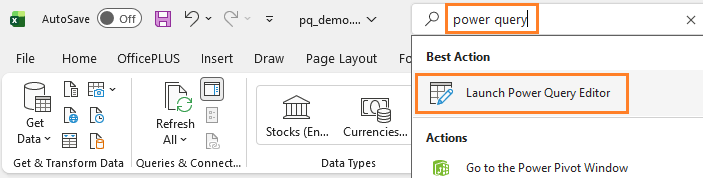
We’ll write M code directly in the Advanced Editor rather than relying solely on the graphical interface.
Steps:
- Create a new blank query
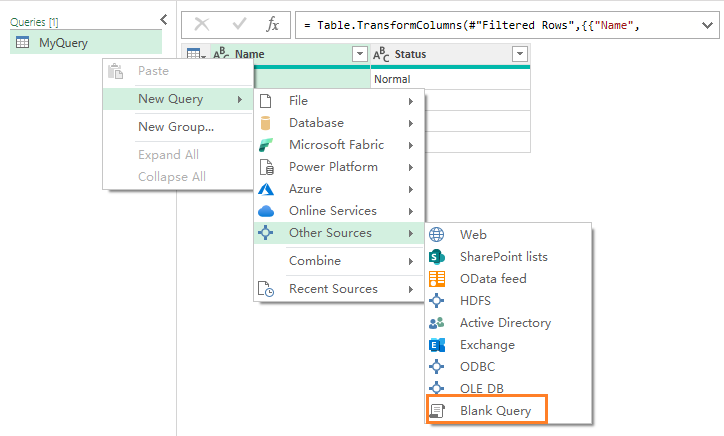
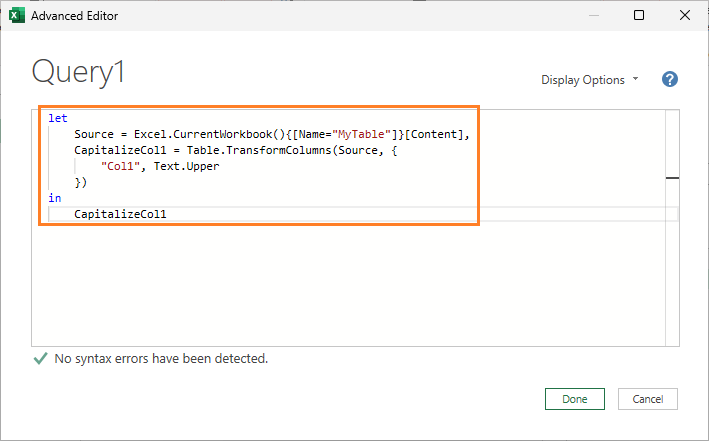
- Open the Advanced Editor for
Query1
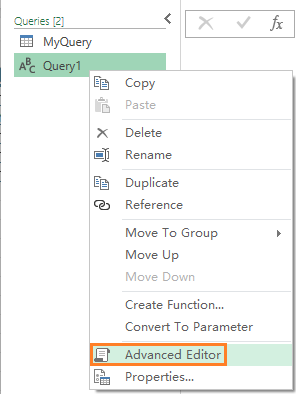
- Write your M code
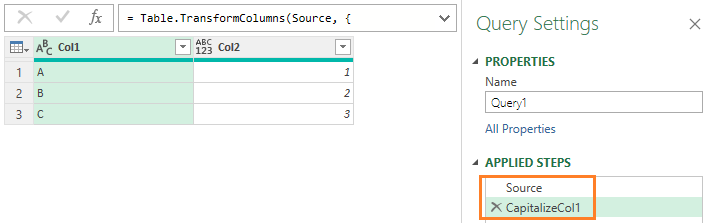
- View transformation steps in the ‘APPLIED STEPS’ panel
Expressions with let#
let is used in M to define expressions and intermediate calculations. This is similar to constructs found in functional programming languages such as Lisp and F#. The general structure of let in M is:
let
  <expressions_for_calculation>
in
  <return_value>
For example,
let
  // get first name
  FirstName = "john",

  // get last name
  LastName = "doe",

  // populate full name
  FullName= Text.Combine({FirstName, LastName}, " ")
in
  // format name
  Text.Proper(FullName)
The above M code works correctly. However, it is generally recommended to return a variable in the in clause instead of placing an expression directly. The reason is that in APPLIED STEPS, the above code produces only one combined step, making it harder to observe intermediate results and debug transformations.
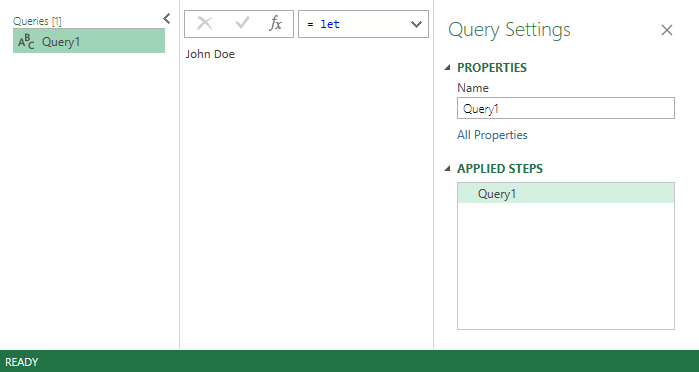
To improve readability and debugging, refine the code by assigning the final expression to a variable:
let
  // get first name
  FirstName = "john",

  // get last name
  LastName = "doe",

  // populate full name
  FullName= Text.Combine({FirstName, LastName}, " "),

  // format name
  FormattedFullName = Text.Proper(FullName)
in
  FormattedFullName
With this approach, APPLIED STEPS displays each transformation step clearly, making it easier to understand and debug the query.
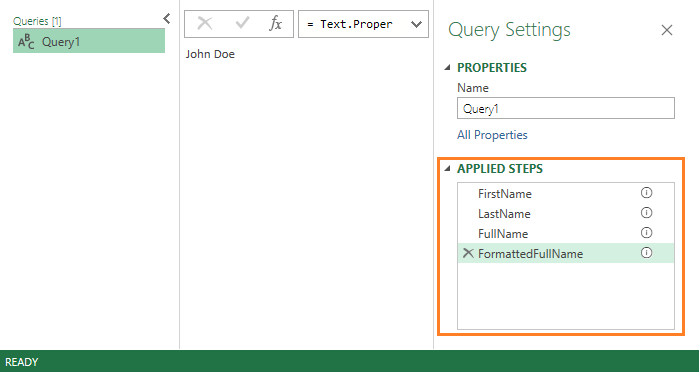
Table Operations#
Get Table Data from Excel Sheets#
In an Excel environment, Excel.CurrentWorkbook() returns all tables, named ranges, and dynamic arrays in the workbook. To reference a specific table named MyTable, use:
Excel.CurrentWorkbook(){[Name="MyTable"]}[Content]
The step-by-step breakdown below clarifies this reference syntax:
let
    // retrieve all tables, named ranges, and dynamic arrays in the workbook
    Tables = Excel.CurrentWorkbook(),

    // filter to the target table by name — returns a record with metadata
    MyTableWithMetaInfo = Tables{[Name="MyTable"]},

    // extract the table content from the record
    MyTableContents = MyTableWithMetaInfo[Content]
in
    MyTableContents

Once the table content is retrieved, two follow-up steps are commonly needed:
Table.PromoteHeaders— Promotes the first row to column headers, useful when Power Query misinterprets header names as data.Table.TransformColumnTypes— Assigns explicit types to each column, enabling reliable type-dependent operations in downstream steps.
let
    MyTable = Excel.CurrentWorkbook(){[Name="MyTable"]}[Content],

    // promote the first row to column headers
    MyTableWithHeader = Table.PromoteHeaders(MyTable),

    // assign explicit types to each column
    MyTableWithHeaderWithColumnsType = Table.TransformColumnTypes(MyTableWithHeader,
        {
            {"FirstName", type text},
            {"LastName", type text},
            {"Age", type number}
        }
    )
in
    MyTableWithHeaderWithColumnsType

Construct Tables#
M provides several ways to construct a table. One intuitive approach is the #table constructor, which can take a list of column names and a list of rows:
let
    ConstructedTable = #table(
        {"FirstName", "LastName", "Age"}, // column names
        {
            {"John", "Doe", 20},          // row 1
            {"Allen", "Smith", 30}        // row2
        }
    )
in
    ConstructedTable
To assign column types at construction time, replace the column name list with a type table declaration. This is more concise than calling Table.TransformColumnTypes as a separate step:
let
    ConstructedTable = #table(
        type table[#"First Name"=text, #"Last Name"=text, Age=number],
        {
            {"John", "Doe", 20},
            {"Allen", "Smith", 30}
        }
    )
in
    ConstructedTable
Note that column names containing spaces must be quoted with #"..." (e.g. #"First Name"), while names without spaces do not (e.g. Age).
Combine Tables#
To stack tables vertically, use Table.Combine. Suppose there are three tables as shown below:
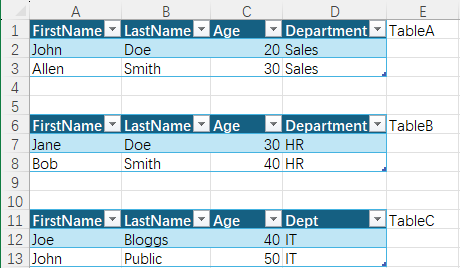
let
    // load and type TableA
    TableA = Excel.CurrentWorkbook(){[Name="TableA"]}[Content],
    TableAColumnTyped = Table.TransformColumnTypes(TableA,
        {
            {"FirstName", type text},
            {"LastName", type text},
            {"Age", type number}
        }
    ),

    // load and type TableB
    TableB = Excel.CurrentWorkbook(){[Name="TableB"]}[Content],
    TableBColumnTyped = Table.TransformColumnTypes(TableB,
        {
            {"FirstName", type text},
            {"LastName", type text},
            {"Age", type number}
        }
    ),

    // load, type and normalise TableC
    TableC = Excel.CurrentWorkbook(){[Name="TableC"]}[Content],
    TableCColumnTyped = Table.TransformColumnTypes(TableC,
        {
            {"FirstName", type text},
            {"LastName", type text},
            {"Age", type number}
        }
    ),
    // rename "Dept" to "Department" to align with other tables
    TableCColumnRenamed = Table.RenameColumns(TableCColumnTyped,
        {
            {"Dept", "Department"}
        }
    ),

    // stack tables with `Table.Combine` function
    CombinedTable = Table.Combine({TableAColumnTyped, TableBColumnTyped, TableCColumnRenamed})
in
    CombinedTable
Join Tables#
Table join is a common operation in data processing. Suppose there are two related tables as shown below:
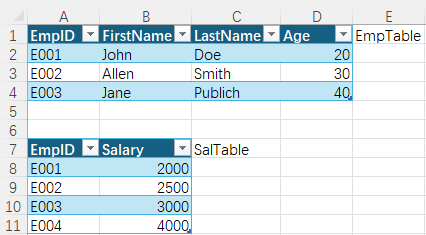
let
    // load and type EmpTable
    EmpTable = Excel.CurrentWorkbook(){[Name="EmpTable"]}[Content],
    EmpTableTyped = Table.TransformColumnTypes(EmpTable,
        {
            {"EmpID", type text},
            {"FirstName", type text},
            {"LastName", type text},
            {"Age", type number}
        }
    ),

    // load and type SalTable
    SalTable = Excel.CurrentWorkbook(){[Name="SalTable"]}[Content],
    SalTableTyped = Table.TransformColumnTypes(SalTable,
        {
            {"EmpID", type text},
            {"Salary", type number}
        }
    ),

    // join on "EmpID" column
    EmpSalTable = Table.Join(
        EmpTableTyped, "EmpID",
        SalTableTyped, "EmpID",
        JoinKind.Inner
    )
in
    EmpSalTable
Table.Join supports several join kinds beyond JoinKind.Inner. Refer to https://powerquery.how/joinkind-type/
Query Structure#
In the table combine and join examples above, multiple tables are loaded and typed within a single query before the combine or join operation is performed. In practice, it is better to separate concerns: dedicate individual queries to loading and typing each table, then perform the combine or join in a separate query that references them.
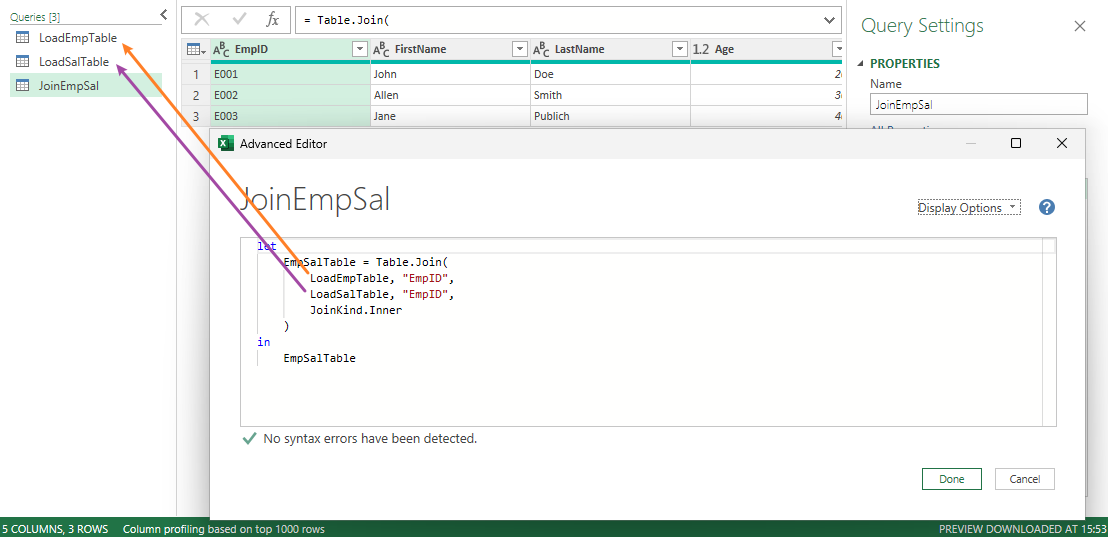
This structure improves maintainability and reusability — if the same table is needed in multiple queries, it is loaded and typed in one place and referenced everywhere else, rather than duplicated across queries.
Transform Data#
Transforming table data to match a target schema is a core ETL task, and M handles it well. To apply a transformation to specific columns, use Table.TransformColumns:
let
    MyTable = #table (
        type table[FirstName=text, LastName=text, Balance=number],
        {
            {"John", "Doe", 10},
            {"Paul", "Public", 20},
            {"Jane", "Doe", 25}
        }
    ),
    UppercaseNameTable = Table.TransformColumns(
        MyTable,
        {
            {"FirstName", Text.Upper},
            {"LastName", Text.Upper}
        }
    )
in
    UppercaseNameTable
Here the built-in Text.Upper function is applied to both FirstName and LastName. For more complex logic, you can define custom functions and pass them in the same way.
Functions in M#
M is a functional language, so defining and composing functions is central to how queries are written. Functions are defined using the arrow symbol =>:
let
    // define a function
    MyAddFn = (x, y) => x + y,
    // call the function
    result = MyAddFn(5, 23)
in
    result
MyAddFn here is a query-local function — it exists only within this query and cannot be referenced from other queries. To share a function across queries, define a dedicated query that returns the function as its result:
let
    MyAddFn = (x, y) => x + y
in
    MyAddFn
This can be simplified further to just the function expression itself:
(x, y) => x + y
Rename this query ‘MyAddFn’ in the query pane, and it becomes available by that name in any other query:
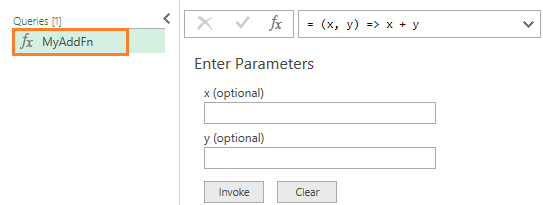
let
    a = 5,
    b = 23,
    result = MyAddFn(a, b)
in
    result
Parameter Types#
Annotating parameters with types is a good practice — it documents intent and surfaces errors earlier. Types are declared with the as keyword:
(x as number, y as number) => x + y
Return Type#
A return type can be declared the same way, placed after the parameter list:
(x as number, y as number) as number => x + y
Syntactic Sugar: each and _#
When a transformation requires a single-parameter function, each offers a concise shorthand. For example, to triple every value in a Balance column:
let
    MyTripleFn = (x as number) as number => x * 3,
    MyTable = #table(
        type table[Name=text, Balance=number],
        {
            {"John", 10},
            {"Paul", 20},
            {"Jane", 25}
        }
    ),
    TripledMyTable = Table.TransformColumns(MyTable,
        {
            {"Balance", MyTripleFn}
        }
    )
in
    TripledMyTable
Under the hood, each <expr> is shorthand for (_) => <expr>, where _ is the implicit parameter. This lets you inline the function without naming it:
let
    MyTable = #table(
        type table[Name=text, Balance=number],
        {
            {"John", 10},
            {"Paul", 20},
            {"Jane", 25}
        }
    ),
    TripledMyTable = Table.TransformColumns(MyTable,
        {
            {"Balance", each _ * 3}
        }
    )
in
    TripledMyTable